A 1440p gaming PC build sits in the sweet spot for many players. It looks noticeably sharper than 1080p, yet it avoids the heavy performance cost of 4K. The trade-off is simple: 1440p exposes weak parts faster. If your GPU is only “okay,” you’ll feel it through lower frame rates, louder fans, or sudden dips during intense scenes.
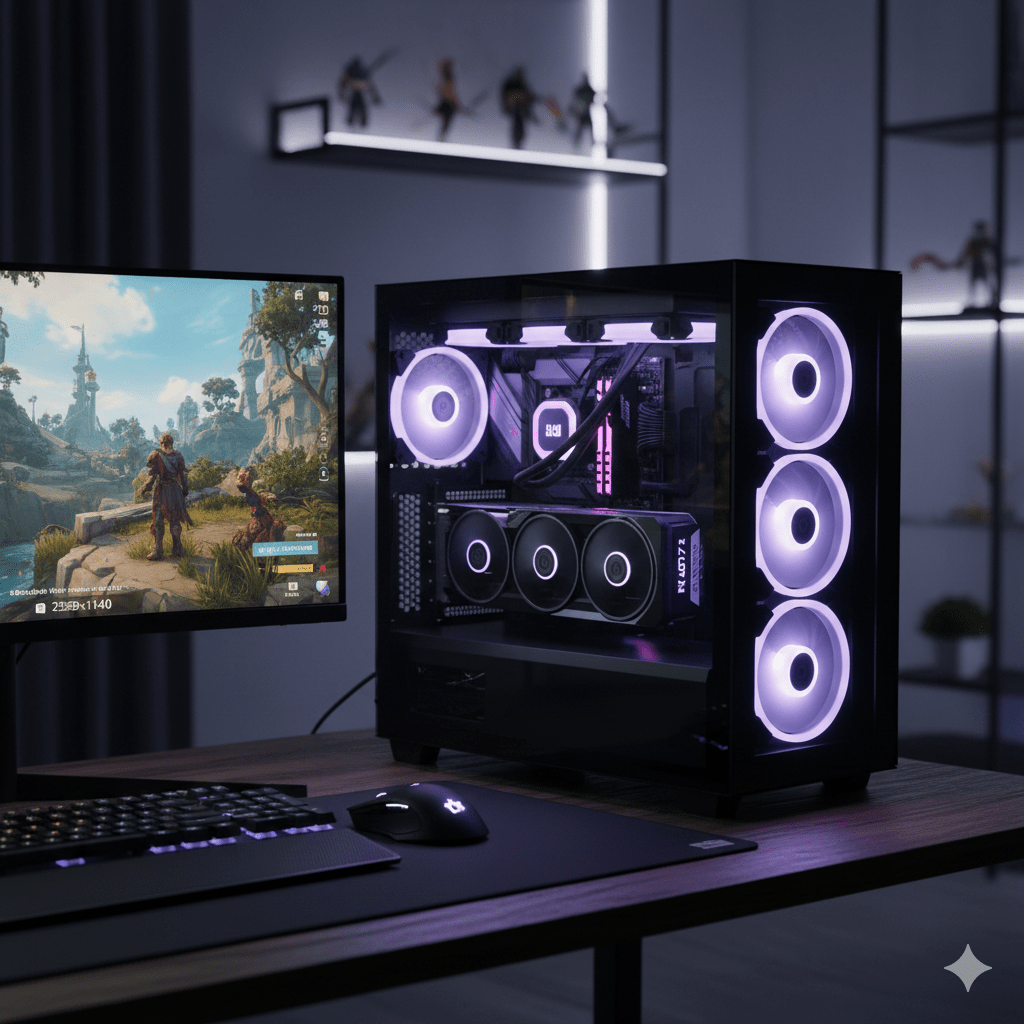
This guide is built around one goal:
a 1440p gaming PC build that feels steady in real gameplay, not just impressive on a parts list.
What “Smooth 1440p” Really Means in Games
Smoothness is not a single FPS number. It’s a combination of frame rate and frame pacing.
Frame Rate Targets
- 60 FPS: Feels great for story-driven and slower-paced games
- 100–120 FPS: A popular target for shooters and action games
- 144 Hz / 165 Hz displays: Very common at 1440p, so many builds aim here
Your monitor’s refresh rate should guide your build more than marketing numbers.
Frame Pacing (What People Forget)
A game can show 120 FPS and still feel bad if frames arrive unevenly. Good frame pacing depends on:
- A balanced GPU and CPU
- Clean drivers
- Sensible graphics settings
- A Windows setup that doesn’t fight your games
A smooth 1440p build avoids spikes, not just averages.
Budget Reality for a Mid-Range 1440p Build
Prices change by region, but the rule stays consistent:
the GPU should take the largest share of the budget.
If the GPU is underpowered, you end up lowering settings so much that the point of 1440p disappears.
A realistic mid-range plan looks like this:
- Spend most on the GPU
- Choose a CPU that keeps up without wasting money
- Use 32GB RAM for modern comfort
- Install games on an NVMe SSD
- Buy a reliable PSU and airflow-focused case
Parts That Matter Most for a 1440p Gaming PC Build
GPU: The Core Decision
At 1440p, the GPU decides:
- Average FPS
- How high you can push textures
- Headroom for future games
VRAM at 1440p
VRAM matters more than it used to. More VRAM helps with:
- Higher texture quality
- Large open-world scenes
- Reducing stutter and texture pop-in
It won’t magically raise FPS, but it improves consistency.
Ray Tracing Expectations
Ray tracing can look excellent, but it cuts performance quickly.
Two common approaches:
- Turn ray tracing down or off for high FPS
- Use ray tracing selectively with smart scaling
There’s no shame in choosing raster performance first.
Choosing a GPU “Lane”
Instead of chasing one exact model, think in lanes:
- Value lane: Medium-high settings, solid FPS
- Balanced lane: High settings with better longevity
- Upper mid-range lane: High refresh 1440p with headroom
This keeps choices flexible across regions and pricing.
CPU: Strong Enough, Not Overkill
At 1440p, the GPU usually limits first, but the CPU still affects:
- Minimum FPS
- Busy open-world traversal
- Physics-heavy and simulation games
- Competitive shooters
A modern 6-core / 12-thread CPU is enough for gaming.
An 8-core helps with multitasking, recording, and streaming.
The goal is stable performance, not maximum core count.
RAM: Capacity First, Then Speed
For modern PC gaming, 32GB RAM feels comfortable.
It covers:
- Modern titles
- Discord and voice chat
- Browsers and launchers
- Background apps
Speed matters after capacity and stability.
- DDR4 platforms: choose a stable DDR4 kit
- DDR5 platforms: choose a supported DDR5 kit
Storage: NVMe Improves Daily Use
An NVMe SSD improves:
- Game launch times
- Patch installs
- Overall system responsiveness
A simple guide:
- 1TB: Small libraries
- 2TB: Multiple modern AAA games
If you record clips or keep captures, storage fills faster than expected.
Motherboard: Features You’ll Actually Use
Focus on:
- CPU compatibility
- Enough USB ports
- Wi-Fi/Bluetooth if needed
- At least two M.2 slots
- Reasonable VRM cooling
You don’t need the most expensive board to build a great 1440p system.
PSU: Stability and Quiet Operation
A quality PSU:
- Improves stability
- Reduces random crashes
- Keeps fan noise down
Choose one with headroom for your GPU and future upgrades.
Case and Cooling: Consistency Over Looks
Heat lowers boost clocks and raises noise.
Good airflow means:
- Front intake fans
- Rear/top exhaust
- Clear GPU airflow
Most CPUs are fine with a good air cooler. Stronger cooling helps if you want lower noise or run heavy loads.
A Balanced Mid-Range 1440p Gaming PC Build (Template)
Think of this as a shape, not a locked list.
- CPU: Modern 6- or 8-core gaming-focused processor
- GPU: Balanced or upper mid-range 1440p class
- Motherboard: Matching socket, good I/O, 2× M.2
- RAM: 32GB dual-channel
- SSD: 1–2TB NVMe
- PSU: Quality unit with headroom
- Case: Airflow-focused
- Cooling: Solid air cooler + sensible fan layout
Compatibility Checks Before Buying
Many problems come from simple mismatches.
Check These First
- CPU socket matches motherboard
- DDR4 vs DDR5 matches the board
- GPU length fits the case
- PSU has required GPU connectors
- Cooler height fits case and RAM
Build Order That Reduces Mistakes
- Prep workspace
- Install CPU, RAM, SSD on motherboard
- Mount cooler
- Install motherboard in case
- Route PSU cables
- Install GPU last
First Boot and BIOS Checks
In BIOS, confirm:
- RAM detected correctly
- Idle CPU temps look normal
- Storage shows up
Enable XMP or EXPO so RAM runs at rated speed.
Windows Setup for Smooth 1440p Gaming
- Install chipset drivers first
- Then GPU drivers
- Keep background apps under control
- Leave free space on your SSD
A strong build can feel bad with a messy OS.
In-Game Settings That Matter at 1440p
High-impact FPS settings:
- Shadows
- Volumetrics
- Reflections
- Ambient occlusion
- Heavy anti-aliasing
A smart approach:
- Keep textures high (if VRAM allows)
- Lower shadows and volumetrics slightly
Fixing Stutter and “Something Feels Off”
Common causes:
- Shader compilation (let it finish)
- Background tasks
- Overlay conflicts
- Low SSD free space
- Thermal throttling
Always check temps and overlays first.
Useful Software After Your 1440p Build
Many gamers also use their PC for clips and reviews.
VLC Media Player
VLC Media Player (by the VideoLAN project) is widely used because it supports many formats and handles game clips well. Hardware decoding settings can reduce system load during playback.
Avoid “safe downloader” wrappers. Get media tools from trusted sources only.
Match Tracking and Esports Tools
Some players use third-party tools for profiles, maps, and stats. Stick to reputable platforms, avoid bundled installers, and be cautious with permissions.
Upgrade Paths for a 1440p Gaming PC Build
Best upgrade order:
- GPU
- Storage
- Cooling and noise improvements
- CPU (if needed)
Each step noticeably improves daily experience.
Final Thoughts
A great 1440p gaming PC build is about balance. Let the GPU do the heavy lifting, keep the CPU strong enough for minimum FPS, give RAM breathing room, and support everything with good airflow and a stable PSU. Past that, Windows setup and game settings decide whether the PC feels smooth or fussy.
Build it clean, set it up calmly, and enjoy the games.