“Smooth gameplay” is not just a high FPS number. Smooth means frames arrive evenly, camera motion looks clean, and your controls feel direct. Many players push graphics higher, admire a screenshot, then the moment a fight starts the experience falls apart: stutter, tearing, loud fans, and input that feels late.
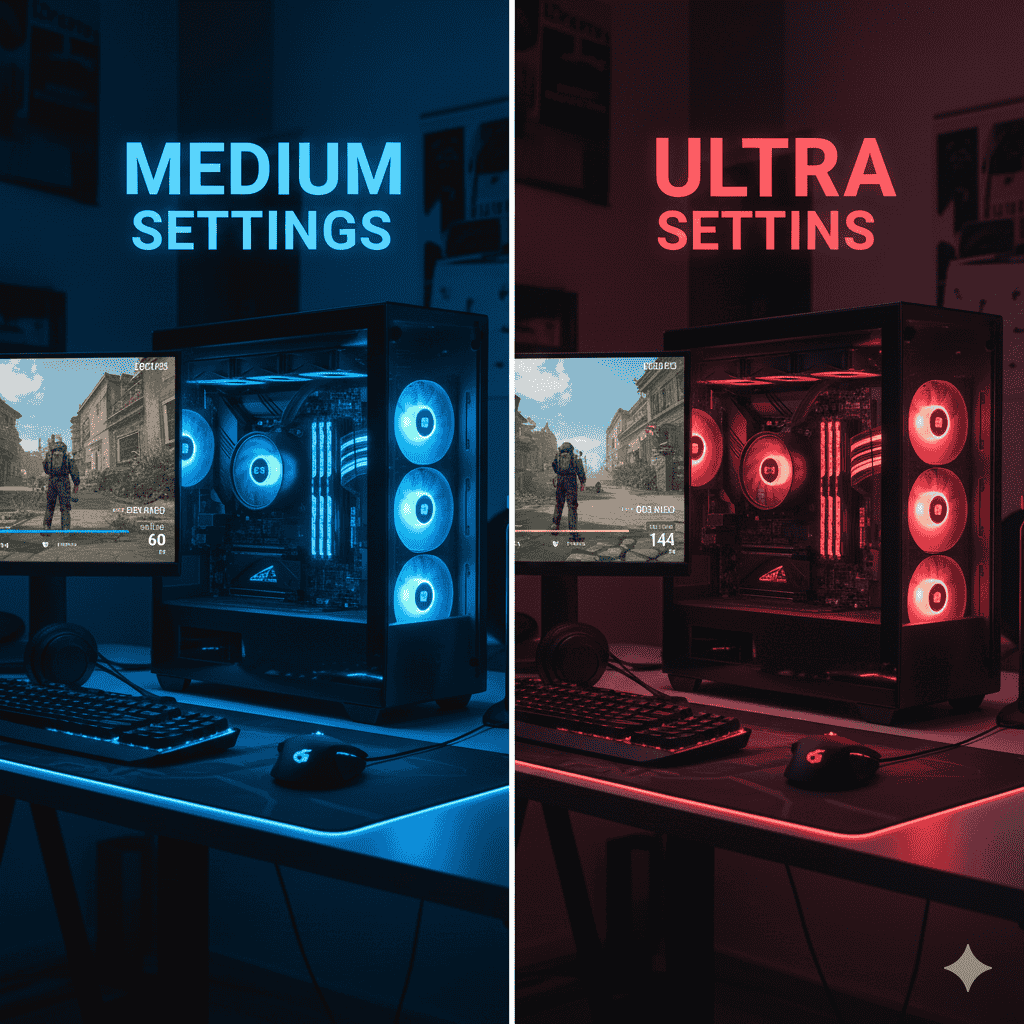
The best PC gaming settings are not about maxing sliders. They are about building a stable chain from your PC to your screen, then tuning a short list of settings that actually affect feel.
This guide is written for real life: different hardware, different monitors, different games, and the odd behavior that shows up after updates.
Start With the Biggest Win: The Display Chain
Before touching shadows, textures, or fancy effects, lock down the basics. Most “bad feeling” gameplay starts here.
Refresh Rate: Check This Before Anything Else
High-refresh monitors often run at 60Hz by default in Windows. That single mismatch makes games feel wrong even on powerful hardware.
What to set
Open Windows display settings and select your monitor’s actual refresh rate. Then open the game and confirm the same refresh rate appears in the game’s video menu. Some games reset this after updates, so it’s worth checking occasionally.
What you should feel
Camera panning looks cleaner, mouse movement feels more direct, and fast motion stops looking smeared. This is one of the easiest “best PC gaming settings” wins.
Fullscreen, Borderless, Windowed: Choose on Purpose
Display mode affects input feel and stability.
Fullscreen
Often feels tighter for competitive play and can reduce odd frame pacing in some games.
Borderless windowed
More convenient for alt-tabbing and multi-monitor setups. Can feel just as smooth if the rest of the system is configured well.
How to decide
Stand in the same in-game spot, move the camera the same way, switch modes, and repeat. Keep the one that feels better to you.
FPS Cap: The Quiet Hero of Smooth Gameplay
Unlimited FPS can cause uneven frame pacing, heat spikes, and sudden dips. A sensible cap often feels calmer.
Where to cap
Start by matching your monitor refresh rate. Many systems feel even smoother with a cap set slightly below refresh. Story games and competitive games may feel best with different caps.
Why it works
The GPU stops sprinting into heat and throttling. Frame times even out. Your brain reads that consistency as smoothness.
Tearing, VRR, and V-Sync
Tearing shows up as a horizontal split during motion. VRR (FreeSync, G-Sync, HDMI VRR) helps match refresh to frame output.
A practical test order
Enable VRR first if supported. Test fast camera movement. If tearing remains, try V-Sync in-game. If input feels heavy, turn V-Sync back off and rely on VRR plus an FPS cap. There is no universal rule—only what feels best on your setup.
Resolution and Render Scale: The Fastest Performance Lever
Resolution equals workload. Render scale lets you reduce that workload without destroying UI clarity.
How to use it properly
Keep your native resolution. Lower render scale in small steps and test in a busy scene. Stop when motion feels steady. If the image gets too soft, raise it one step and reduce a heavy setting like shadows instead.
Graphics Settings That Matter Most for Smooth Gameplay
Games ship with walls of sliders. Changing everything teaches you nothing. A better approach is to tune a short list of high-impact options.
Start With a Preset, Then Tune
Begin with Medium or High. Ultra often adds small visual gains at a large performance cost. Stabilize first, then improve visuals gradually.
Shadows: Lower These First When Stutter Hits
Shadows are expensive, especially shadow distance in open areas.
What to try
Lower shadow quality one step. Reduce shadow distance slightly if available. Visual loss is usually small, performance gain can be large.
Textures and VRAM: Where Stutter Often Hides
Textures don’t always reduce FPS directly, but VRAM overload causes hitching when turning quickly or entering new areas.
What to try
If you notice stutter during fast turns or new zones, lower texture quality one notch. Keep other visuals high if VRAM allows.
Anti-Aliasing and Image Clarity
Some AA methods blur the image or cost more than expected, especially when combined with upscaling.
What to try
Use a modern AA option that fits the game. If the image looks soft, reduce AA one step and add a small sharpening value instead.
Upscaling: Free Frames When Used Correctly
DLSS, FSR, and XeSS reduce internal render load and can improve smooth gameplay.
What to try
Start with a balanced mode. If performance is still shaky, move toward performance mode. Watch text and foliage. If artifacts appear, step back one level.
Post-Processing Effects: Clean Motion Over Cinematic Blur
Motion blur, film grain, chromatic effects, and heavy depth-of-field can make movement look messy.
What to try
Turn motion blur off first. Play for a while. If the image feels too sharp, re-enable it at a low level. Your eyes decide.
Ray Tracing: Treat It as a Luxury Toggle
Ray tracing can look great and destroy performance.
What to try
If smooth gameplay is the goal, turn ray tracing off. If you want it, enable only the lightest RT feature and test again.
Windows and System Settings That Keep Games Stable
Games don’t run alone. The operating system matters.
Power Mode and Performance
Use a performance-focused power mode during gaming. Laptops should be plugged in; battery modes throttle hard.
Background Apps and Overlays
Overlays are useful, but too many can cause stutter. Browsers with many tabs can quietly steal resources.
What to do
Close what you don’t need. Keep browsers light. Pause video and audio playback before competitive sessions.
Storage and Updates
Modern games stream assets constantly.
A quick habit after updates
Open the game settings and re-check: refresh rate, display mode, FPS cap, render scale, and upscaling. This simple routine prevents hours of confusion.
Input Settings for a Cleaner Feel
Mouse Acceleration and Consistency
Many players prefer predictable mouse movement.
What to try
Disable pointer precision in Windows, then re-set in-game sensitivity. Give your muscle memory time to adapt.
DPI and Sensitivity Stability
Pick a DPI. Pick a sensitivity. Keep it for a week. Constant changes slow improvement.
Controller Dead Zones
Tune dead zones to remove drift without making small movements feel sluggish.
Audio Settings That Actually Matter
Audio affects gameplay feel more than many people realize.
Output Device and Sample Rate
Choose one main output device and stick with it. Constant switching can cause crackle or delay.
In-Game Audio Mixes
Headphone or night-mode mixes often improve clarity for footsteps and distance cues.
Browser Audio Conflicts
Browser HTML5 audio can steal focus from your game.
What to do
Pause browser audio or close heavy tabs before serious play.
Best PC Gaming Settings by Resolution
1080p
Focus on refresh rate, FPS cap, shadows, and post-processing. High FPS with clean motion is the goal.
1440p
Balance clarity and performance. Upscaling helps. Keep textures within VRAM limits.
4K
Stability comes first. Use render scale, upscaling, and lower shadows. Treat ray tracing as optional.
When Smooth Gameplay Falls Apart
Micro-stutter during camera turns
Check textures and VRAM, then shadows, then render scale.
Big FPS drops in fights
Lower shadows and volumetrics. Keep a stable FPS cap.
Input feels late
Test fullscreen, test V-Sync off with a cap, reduce heavy post-processing.
Screen tearing
Use VRR. Add V-Sync only if needed.
Audio glitches
Confirm output device and pause browser audio.
What “Best” Really Means
Searches for best PC gaming settings get messy because “best” pulls in dictionary pages, translations, news, and unrelated topics. Ignore the noise. The best settings are the ones that make your games feel stable on your hardware.
Wrap-Up
The best PC gaming settings start with the display chain: refresh rate, display mode, FPS cap, and sync. From there, tune a small group of high-impact graphics options: render scale, shadows, textures, AA, and upscaling. Keep Windows clean during play, minimize overlays, and keep audio devices consistent. This approach turns random tweaking into repeatable smooth gameplay.