PC gaming basics are not about memorizing hundreds of settings. They are about fixing a small group of things that decide whether a game feels smooth or frustrating. Many new players push graphics to the maximum, then wonder why gameplay feels rough, noisy, or inconsistent.
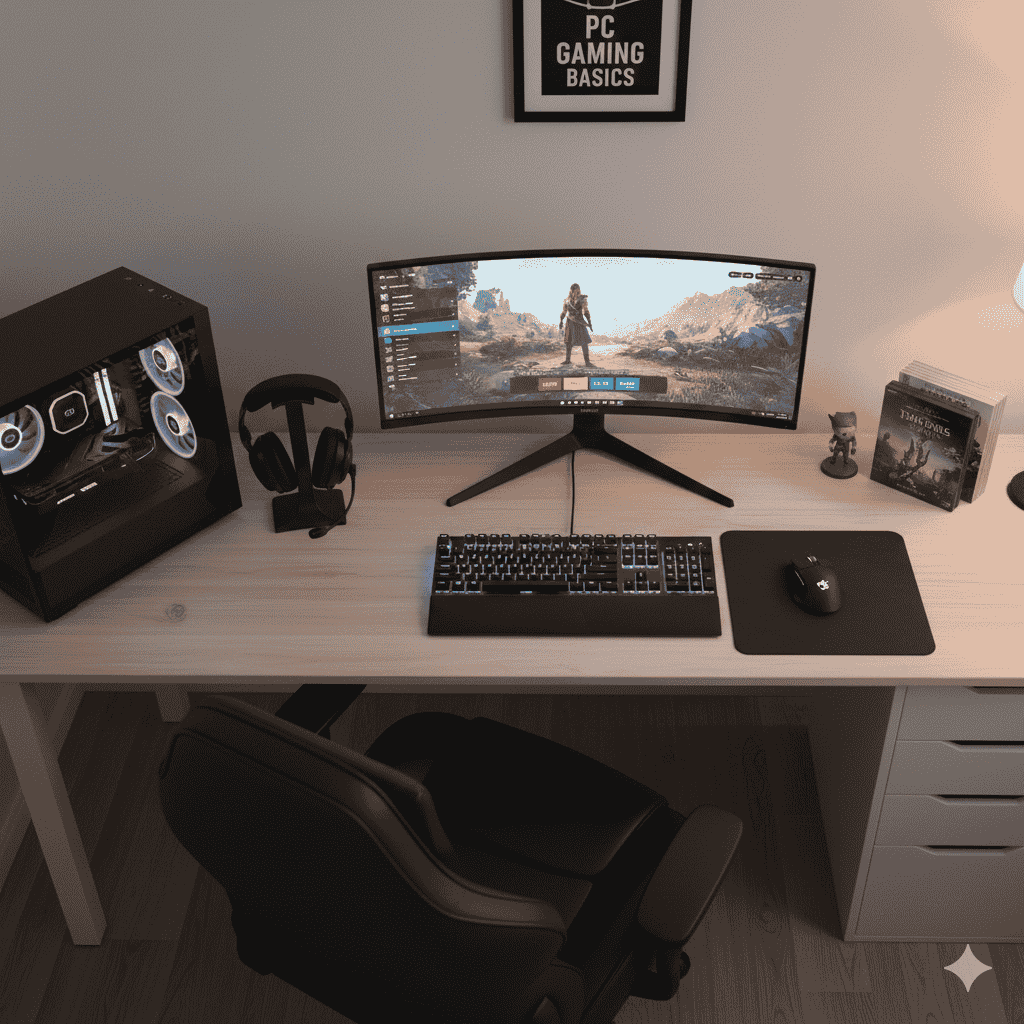
This guide focuses on changes you can make in minutes. It covers Windows setup, in-game display settings, graphics options, input feel, performance checks, basic safety habits, and a short gadgets section that appears in real search behavior.
If you want PC gaming to feel good instead of confusing, start here.
Fast Reference Points for Beginners
These are common real-world targets, not rules you can fail.
- 60 FPS feels smooth on a 60Hz screen when frame pacing is stable
- 120–144 FPS feels cleaner on 120–144Hz screens if your system holds steady
- 1080p is still the most common gaming resolution, with 1440p growing fast
- 16GB and 32GB RAM are common in modern PCs due to multitasking and larger games
PC gaming basics become easier once you stop treating settings like an exam.
Windows Settings You Should Set Once
Refresh Rate: The Most Common Beginner Mistake
A monitor that supports 120Hz or 144Hz can still run at 60Hz in Windows. This single mismatch makes fast PCs feel slow.
What to do
Open Windows display settings and set the monitor refresh rate to its real value. Check again after major updates or when adding another screen.
What you should notice
Mouse movement feels smoother. Camera motion looks cleaner. Games feel less “draggy.”
Game Mode: Test, Don’t Assume
Windows Game Mode can reduce background interruptions on some systems and do nothing on others.
What to do
Turn Game Mode on, play a familiar game for about 15 minutes, then turn it off and repeat. Keep the option that feels smoother on your hardware.
Borderless Windowed Settings
Many players use borderless windowed mode for easy alt-tabbing. Windows includes settings that can improve how windowed games behave on some systems.
If you play borderless, that toggle is worth testing once.
Mouse Pointer Precision: Decide on Purpose
Windows includes mouse acceleration that changes how movement scales with speed. Some players like it for desktop use. Many PC gamers turn it off for consistent aiming.
What to do
Turn pointer precision off, then adjust in-game sensitivity. Test for a full day before deciding.
Laptop Graphics Preference: Avoid the Wrong GPU
Laptop games can launch on integrated graphics by accident.
What to do
Set the game to “High performance” in Windows graphics settings. Confirm GPU usage changes when you adjust graphics settings in game.
In-Game Display Settings to Change First
This is where PC gaming basics pay off quickly.
Fullscreen vs Borderless
Fullscreen can reduce input delay on many setups. Borderless is more convenient for multitasking.
Simple rule
Competitive play: test fullscreen first
Casual play with frequent alt-tabbing: borderless is often fine
Test both in the same scene and keep what feels better.
FPS Cap: Steady Beats Spiky
Leaving FPS uncapped can cause high peaks, sudden dips, extra heat, and loud fans.
A simple method
Cap FPS slightly below your refresh rate.
- 60Hz screen → cap near 60
- 120Hz screen → cap near 120
- 144Hz screen → cap near 141–144
The goal is consistency, not chasing the biggest number.
V-Sync and VRR: Control Tearing Without Ruining Feel
Screen tearing happens when frames arrive out of sync with the display.
Practical order
If your monitor supports VRR, enable it and test with V-Sync off.
If tearing remains, test V-Sync on.
If input feels heavy, try VRR with a cap instead.
There is no universal best option. Keep what feels clean.
Resolution and Render Scale
Render scale is the fastest performance lever for beginners.
What to do
Keep native resolution. Lower render scale in small steps. Stop when the game feels stable. If the image becomes too soft, raise render scale back up and lower shadows instead.
Graphics Settings That Give Real Gains
Instead of touching everything, focus on a short list.
Start With a Preset
Begin with Medium or High. Ultra often adds small visual gains with large performance cost.
Shadows
Shadows are expensive in many games.
Lower shadow quality one step first when performance feels unstable.
Ambient Occlusion and Heavy Lighting
These add depth but can cost a lot of performance. Drop them one level if needed.
Textures and VRAM
Textures can cause stutter if VRAM runs out.
If you stutter while entering new areas or turning quickly, lower textures one notch.
Ray Tracing
Ray tracing looks great and can destroy performance.
Treat it as a luxury toggle, not a default setting.
Upscaling
Upscaling reduces internal render load and can massively improve smoothness.
Start with a balanced mode. Add a little sharpening if the image looks soft.
Input Settings Beginners Often Miss
Raw Input
If a game offers raw input, enable it. It reads the mouse more directly and avoids odd acceleration behavior.
Sensitivity and DPI
Constantly changing sensitivity prevents muscle memory.
Pick one DPI and one in-game sensitivity. Stick with it for a week.
Controller Dead Zones
Set dead zones to remove drift without making small movements feel slow.
Motion Blur, Film Grain, Depth of Field
Many beginners turn these off and feel instant clarity.
Turn them off once, play a session, then re-enable only if you miss the look.
Field of View
Higher FOV can feel more comfortable but can reduce performance.
Adjust slowly and test.
Performance Checks That Guide Your Next Change
A simple overlay can save hours.
What to watch
GPU near 99% → GPU limit
Low GPU usage with low FPS → CPU or background limit
VRAM full → texture pressure
RAM nearly full → background apps
Frame pacing matters more than average FPS.
Updates, Stutter, and Normal Behavior
After big updates, some games rebuild shaders. Short stutters in new areas can be normal for a while.
After updates, quickly recheck:
- Display mode
- FPS cap
- Render scale
- VRR / V-Sync
This habit prevents confusion.
Quick Fixes for Common Beginner Problems
Smooth in menus, bad in matches
Check fullscreen mode, FPS cap, background downloads.
Tearing everywhere
Enable VRR if supported, then test V-Sync.
Input feels delayed
Test fullscreen, reduce heavy post-processing, review V-Sync.
Upgraded GPU but no improvement
Confirm monitor cable is plugged into the GPU, not the motherboard.
Random crashes
Update drivers, verify game files, check free storage, watch temperatures.
Cloud Gaming and PC Gaming Basics
Cloud gaming runs games on remote hardware and streams video to your device.
It works best with stable internet and low latency. Local play still feels better for competitive games, heavy mods, and offline use.
Cloud gaming is a tool, not a replacement for every player.
Safety and Account Habits for New PC Gamers
Install games from trusted launchers. Avoid random “boost” tools. Use two-factor login where possible. Keep passwords unique.
For younger players, follow age guidance, use chat restrictions, and protect sleep with time limits.
In shared spaces, basic safety helps:
- Rated power strips
- Good airflow
- Tidy cable routing
Gadgets Corner: Keyboard Plastics in Plain Words
Input devices affect comfort during long sessions.
- PC (polycarbonate): often translucent, good for RGB
- PBT: textured, resists shine
- POM: smooth feel, different sound
- PA / PPO: engineering plastics used in blends
Material choice affects feel and sound, even when game settings stay the same.
Conclusion
PC gaming basics are about a repeatable routine, not endless tweaking. Set the correct refresh rate, choose fullscreen or borderless on purpose, cap FPS for steadier frame pacing, control tearing with VRR or V-Sync tests, then tune a few high-impact graphics options like render scale and shadows. Combine that with clean software habits and comfortable input gear, and PC gaming becomes smooth, predictable, and enjoyable.