PC gaming stutter feels worse than low FPS. Your counter might show “good” numbers, yet camera turns feel jerky, fights hitch, and movement looks uneven. That mismatch is the clue. Most stutter is not an average FPS problem. It’s a frame-time problem.
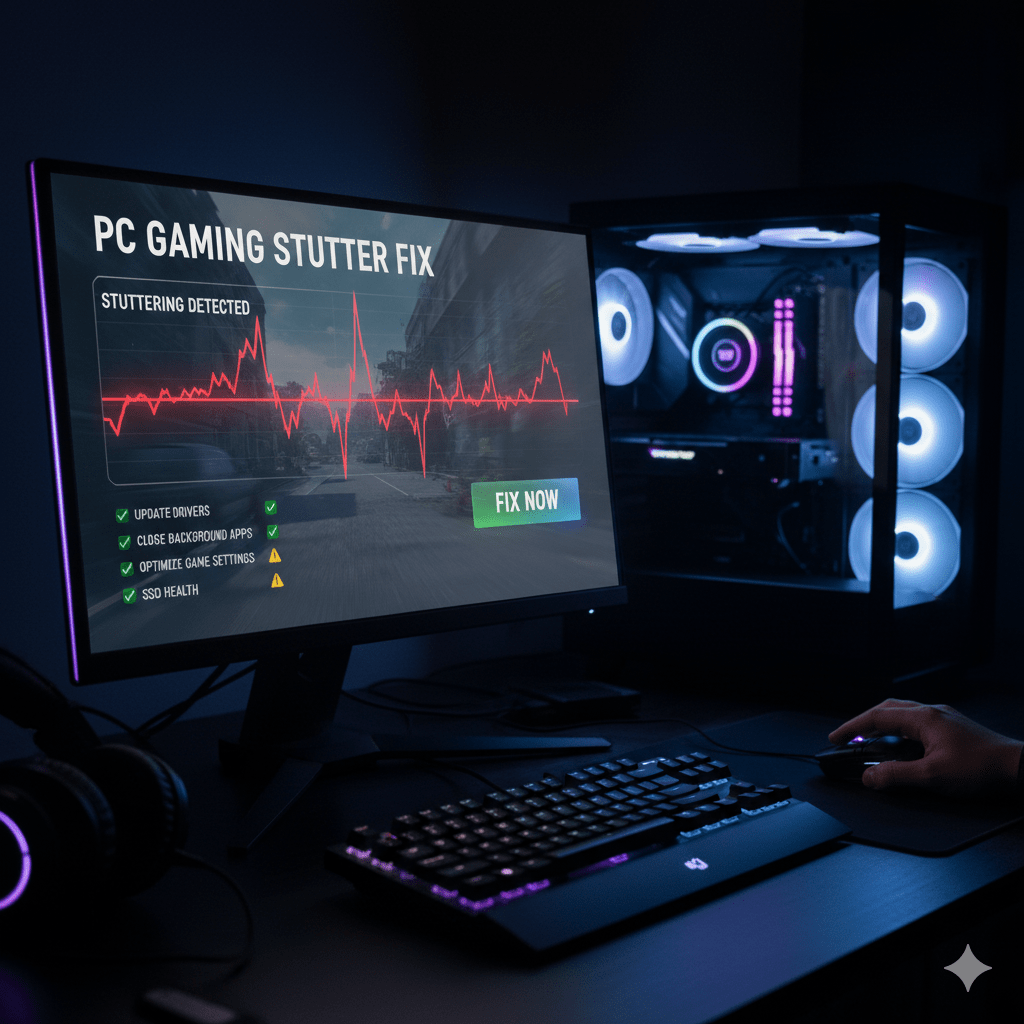
This pc gaming stutter fix focuses on what actually smooths gameplay: Windows settings, background behavior, storage health, and in-game options that stabilize frame delivery. It applies to micro stutter, short freezes, and the traversal spikes people often describe as “lag.”
What Stutter Really Is (and Why It Feels So Bad)
Stutter is inconsistency. Frames arrive late, then early, then late again. Your eyes notice the uneven rhythm far more than a steady but lower frame rate.
A simple example:
- A 60 Hz display refreshes every 16.7 ms
- If frames arrive at 16 ms, then 40 ms, then 12 ms, the average looks fine
- That 40 ms spike creates a visible hitch
Higher refresh displays make this even more noticeable. At 120 Hz, refreshes happen every 8.3 ms, so spikes stand out faster.
Stutter vs Low FPS vs Input Delay
These are often mixed together, but the fixes differ.
Low FPS
The game is consistently slow. Motion is choppy in a predictable way.
Stutter / Micro Stutter
Motion is mostly smooth, then briefly “catches,” then smooth again.
Input Delay
Motion looks smooth, but controls feel late or floaty.
Naming the problem correctly saves time.
Three Common Stutter Patterns You Can Recognize
Micro Stutter (Tiny Hitches)
Small, frequent frame-time spikes. Camera panning feels gritty.
Hitching (Short Freezes)
Half-second pauses when menus open, effects trigger, or something new loads.
Traversal Stutter
Entering new areas in open-world games causes spikes as assets stream from storage.
Quick Diagnosis in 5 Minutes (Before Changing Anything)
This is a learn-first step. No tweaks yet.
Use One Overlay and Watch the Pattern
Use a simple overlay showing FPS, GPU usage, and CPU usage.
Watch what happens when the stutter hits:
- GPU usage stays high → graphics settings, VRAM, temperature, driver state
- GPU usage drops during stutter → CPU load, background apps, Windows tasks
- Stutter only on first load → shader compilation or asset caching
Too many overlays can cause stutter themselves. Keep it minimal.
Reproduce the Stutter on Demand
Pick one repeatable scene: a crowded area, a specific route, or a known fight.
Test changes only in that same spot.
Check Windows Time and Date (Yes, Really)
Incorrect system time or time zone can trigger repeated background checks.
Open Settings → Time & language and confirm:
- Correct time zone
- Correct system date
- Correct system time
This removes a quiet background source of spikes.
Safety First: Create a Restore Point
Before driver cleanups or deep Windows changes, create a restore point.
Open Start, search restore point, open System Protection, then create one.
If a change makes stutter worse, you have a rollback path.
Windows Settings That Reduce Stutter and Micro Stutter
Most reliable stutter fixes live here.
Display Settings: Refresh Rate, VRR, HDR
Open Settings → System → Display.
Confirm:
- Refresh rate matches your monitor’s real value
- Variable refresh (VRR) is enabled if supported
- HDR and color modes are consistent
Frequent HDR switching or mismatched modes can cause stutter during alt-tab or overlays.
Fullscreen vs Borderless Windowed
Test both:
- Fullscreen exclusive
- Borderless windowed
Use the same test scene. One mode often has smoother frame pacing on a given Windows version.
Graphics Settings Page (Per-App Options)
Open Settings → System → Display → Graphics.
For your game:
- Set High performance GPU (on multi-GPU systems)
- Test Windowed optimizations on/off
- Test Hardware-accelerated GPU scheduling on/off
Change one option at a time and test.
Game Bar, Captures, and Overlays
Overlays stack quickly and hook into the render path.
In Windows Settings, review:
- Background recording
- Game Bar shortcuts
If you never record clips, turning these off often helps. If you do record, keep them on but limit extra overlays.
Apps and Startup: Reduce Background Wake-Ups
Open Settings → Apps → Startup.
Disable anything you don’t need while gaming:
- Auto-updating launchers
- Constantly refreshing chat apps
- RGB control software that polls hardware
- Tray utilities you never use
Fewer background wake-ups mean steadier frame times.
Windows Security and Scan Timing
Security scans can spike CPU and disk.
Check Microsoft Security settings and:
- Keep real-time protection on if needed
- Schedule full scans outside gaming hours
This prevents surprise hitching mid-game.
Storage and File Activity: Hidden Stutter Sources
Many stutter complaints feel like GPU problems but start on storage.
Put Games on Fast Storage
Open Settings → System → Storage and check:
- Free space on the game drive
- Active storage usage during stutter
A nearly full drive slows caching and streaming. Free space helps.
Use File Explorer to Spot Background Activity
Open File Explorer and watch your game drive.
Look for:
- Downloads
- Cloud sync
- Launcher patching
- Update activity
Use Quick access to pin your Games folder. Switch to the View tab and select a detailed view so file activity is visible. The left navigation pane helps jump between folders quickly, and the context menu lets you check properties and free space.
Microsoft Account, Subscriptions, and Background Checks
Background account checks can cause small but repeating spikes.
Open Settings → Accounts and:
- Confirm account status
- Check for school or work accounts
- Pause store auto-downloads while gaming
Subscription benefits and entitlement checks can run quietly in the background.
Windows Updates and “It Started Yesterday” Clues
If stutter began on a specific day, note it.
Open Settings → System → About and check:
- Windows version
- Recent update install date
If needed, use System Restore before considering reinstall media or product key steps.
Frame Pacing Tools That Work in Almost Every Game
Use a Frame Cap on Purpose
A stable cap often reduces spikes by keeping the GPU away from unstable peaks.
Good starting points:
- 60 Hz display → cap near 60
- 120 Hz → cap near 120
- 144 Hz → cap near 144
With VRR, capping slightly under max refresh often feels smoother.
V-Sync, VRR, and Tearing
Test combinations one at a time:
- VRR on, V-Sync off
- VRR on, V-Sync on
- VRR off, V-Sync on
Keep the test scene identical.
In-Game Settings That Reduce Micro Stutter Fast
Texture Quality and Streaming
If turning quickly causes spikes:
- Lower texture quality one step
- Reduce texture streaming budget if available
Shadows, Reflections, Ray Tracing
These cause heavy frame-time variance:
- Lower shadows first
- Reduce reflections in busy areas
- Treat ray tracing as optional
Motion Blur and Camera Effects
Motion blur can slightly mask tiny spikes in some engines. If you hate it, keep it off. If smoothness matters more, test it on low.
CPU-Side Stutter: Simulation and Background Load
Common in:
- Open-world games with many NPCs
- Simulation and strategy titles
- Large multiplayer matches
Lower CPU-heavy settings like:
- Crowd density
- World detail
- View distance
Average FPS may barely change, but spikes often drop.
Shader Compilation and First-Run Stutter
Sometimes stutter is not your fault.
Clues:
- Worst on first run after an update
- Happens the first time an effect appears
- Improves after longer sessions
What helps:
- Run a warm-up session
- Avoid constant settings changes early
- Let the game sit at the menu after a patch
A Calm, Repeatable Test Plan
Stutter fixes fail when everything changes at once.
Use this order:
- Display refresh rate
- Overlays and captures
- Startup apps cleanup
- Storage space check
- Driver changes only if needed
- Frame cap
- Texture streaming and shadows
One change at a time.
Built-In Windows Help Without Extra Tools
If you hit device-specific issues, Windows includes built-in technical assistance and feedback paths inside Settings. Use them later if needed. No extra downloads required during testing.
Conclusion
A good pc gaming stutter fix is a clean sequence, not chaos tweaking. Start with display settings, reduce overlays, calm background apps, confirm storage headroom, and apply a stable frame cap. If stutter appeared after an update, use restore points to roll back safely. When stutter only appears on first runs, treat it as shader or caching behavior and give the game time to settle.